


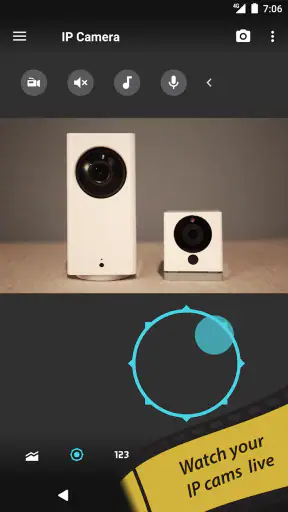
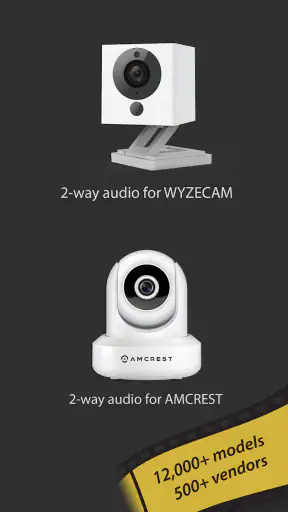
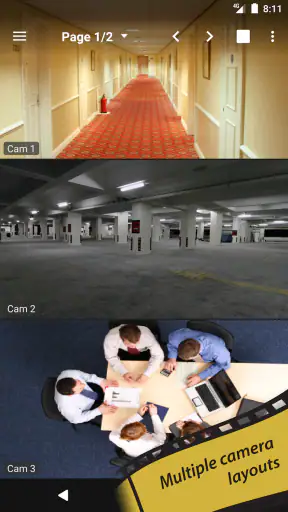
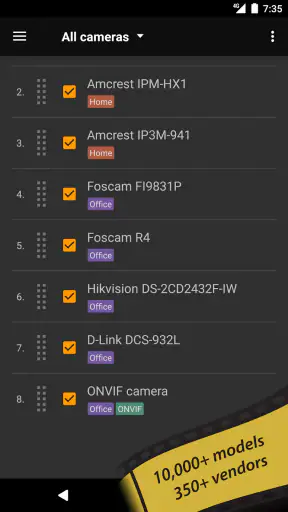
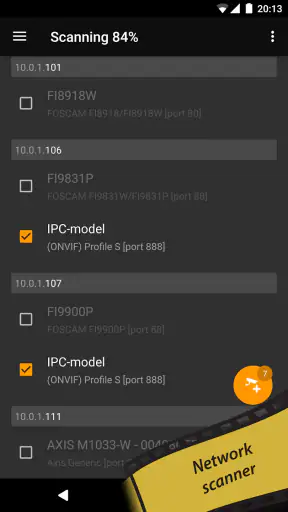
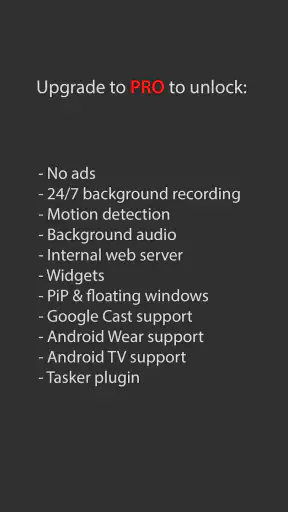
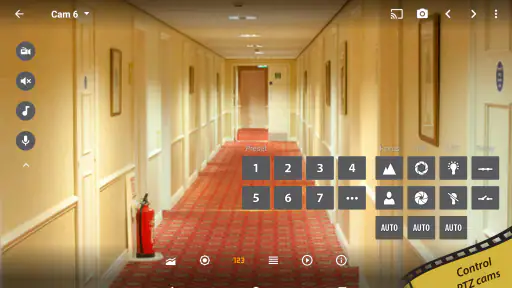
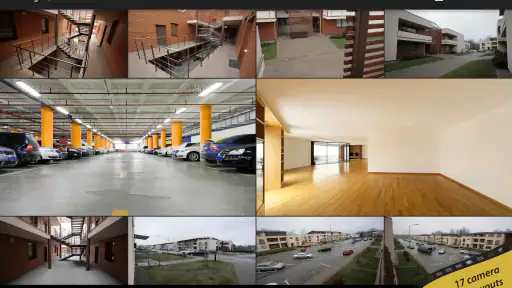
When I use tinyCam Monitor, I am not treating it as another simple camera viewer. Its most useful idea is bringing different kinds of IP cameras into one place, particularly cameras using ONVIF, Wyze, P2P, CamHi, or Neos connections. That matters when a home has grown piece by piece and the cameras do not all belong to the same brand. Instead of jumping between several manufacturer apps, I can work from one Android screen.
That focus makes this free House & Home app from Tiny Solutions LLC more interesting than its short store description suggests. It is aimed at people who already own compatible cameras and want a practical monitoring layer, not at someone looking for a camera to install from scratch. I found the strongest reason to try it is mixed-camera viewing without being locked into one ecosystem. The benefit is convenience, but the experience still depends heavily on how each camera exposes its connection.
One viewer for a mixed camera setup
The central capability is compatibility across several camera families. ONVIF is especially useful in homes or small workplaces where cameras may come from different manufacturers. Wyze, P2P, CamHi, and Neos support widen the audience further, because many owners have cameras that are normally managed through their own dedicated apps. In practical terms, tinyCam Monitor can become the place I open first when I want to check several rooms, a driveway, or a small shop.
I would not describe that as a guarantee that every camera will behave identically. A common viewer can display feeds from different systems, but the camera itself still controls what it makes available. One device may connect smoothly while another needs more careful setup or exposes fewer controls. That is the first important expectation to set: compatibility is valuable, but it does not erase the differences between camera brands.
The app has been available since February 6, 2010, and its long presence helps explain why it remains recognizable in this niche. It is not a new, single-purpose companion app built around one current camera line. Its identity is closer to a flexible monitor for people who want to bring existing equipment together. The current store summary calls it a viewer, and that description is accurate, although the real appeal is the way the viewer can simplify an otherwise fragmented setup.
Its audience is also fairly clear from the store figures: it has passed ten million installs, with an average of 3.7 from roughly seventy-six thousand ratings and about three thousand seven hundred written reviews. I read that combination as a sign of broad usefulness with uneven experiences. A tool that connects to many camera types will naturally please users whose hardware fits well and frustrate those facing unusual network or device-specific problems.
What the unified view changes
With separate manufacturer apps, checking cameras usually means remembering which app belongs to which device. That is manageable with one camera, but it becomes irritating when a front-door camera, indoor camera, and older outdoor unit all come from different sources. A unified viewer reduces that mental switching. I can think in terms of locations rather than brands: entrance, living room, garage, and backyard.
That sounds like a small improvement, yet it changes the rhythm of everyday monitoring. If I hear a delivery arrive, I do not need to remember whether the relevant camera is the Wyze one or the CamHi one. I open the same monitoring app and look for the location I configured. The value is not just fewer icons; it is less hesitation at the moment when a quick visual check is useful.
There is another practical advantage for households that replace cameras gradually. I do not have to discard a functioning camera simply because a newer purchase uses a different connection method. tinyCam Monitor can serve as a bridge between old and new equipment, provided each device is supported and reachable. That makes it more appealing to careful buyers who would rather improve a system over time than rebuild everything around one brand.
How I would approach setup
I would begin with one camera rather than importing the entire home at once. That gives me a chance to confirm the connection method, check whether the live image appears reliably, and understand what the particular device exposes inside the viewer. Once the first feed is stable, adding the remaining cameras is less confusing because I know which part of the process belongs to the app and which part belongs to the camera.
For ONVIF equipment, I would pay close attention to the camera’s network details and account credentials. A camera can be powered on and visible in its original app while still being difficult for another viewer to reach. That is not necessarily a tinyCam Monitor failure; it can be caused by network separation, an incorrect address, or an account that does not permit the expected connection. Treating setup as a short troubleshooting exercise is more realistic than expecting instant discovery every time.
For Wyze, P2P, CamHi, and Neos devices, I would use the connection style that matches the camera rather than assuming an ONVIF workflow will apply. This is one of the less obvious lessons with a multi-protocol viewer: the app is unified, but the preparation is not. The quickest path is usually to identify the camera family first, then enter its details in the way that family expects.
I also recommend labeling feeds by place instead of by model. “Kitchen,” “side gate,” and “nursery” are more useful during a hurried check than a string of model names. This is a simple organizational choice, but it is one of the best ways to make the app feel like a home monitoring tool rather than a technical catalog of camera connections.
A realistic day-to-day scenario
Imagine I have an indoor Wyze camera watching a pet area, an older CamHi camera facing the driveway, and an ONVIF camera covering the back entrance. During the day, I want to check whether a delivery has arrived and later make sure the dog is inside. With separate apps, I would open one service, wait for its feed, close it, and repeat the process. With tinyCam Monitor, the intended workflow is to open one viewer and move through the named locations.
The advantage becomes clearer when the check is not important enough to justify a full routine. I may be cooking and want a quick look at the driveway, or I may be away from home and want to see whether a light movement near the back entrance was expected. The app’s usefulness comes from lowering the effort required for those small checks. It does not need to replace every camera manufacturer feature to be worthwhile; it only needs to make the live-view task more direct.
For a small business or workshop, the same arrangement can help when cameras were purchased at different times. A manager may want one screen for the entrance and storage area without asking staff to learn several vendor interfaces. Still, I would test the setup during normal operating hours before relying on it for a critical observation. A convenient viewer is helpful, but convenience should not be mistaken for a complete security system.
Where the unified approach has limits
The biggest trade-off is that a common viewer may not reproduce every special feature found in a camera’s original app. A manufacturer’s app is designed around its own hardware, so it may offer the most polished onboarding and the deepest access to brand-specific controls. tinyCam Monitor’s strength is breadth, not necessarily perfect parity with every camera feature.
This matters if I mainly care about proprietary functions rather than live viewing. Someone who wants the fullest experience from one Wyze camera may prefer the Wyze app. Someone with a single camera and no plans to add another brand may also find a dedicated app simpler. The multi-camera advantage becomes less compelling when there is no variety to manage.
Network troubleshooting can also be a source of friction. A feed may fail because the camera is offline, the credentials are wrong, the device is isolated on another network, or the chosen connection method is unsuitable. From the user’s perspective, all of those problems can look like “the viewer does not work.” I would therefore keep the original camera app available during setup, because it helps establish whether the camera itself is healthy before I diagnose the shared viewer.
Remote viewing deserves the same careful attitude. I would not assume that a camera visible at home will automatically be just as easy to reach while traveling. The result depends on the camera’s connection arrangement and the network in use. Before relying on the app during a trip, I would test it from a different connection and confirm that the feeds I actually need are reachable. That small test can prevent unpleasant surprises later.
Privacy is another reason to be deliberate. A camera viewer brings sensitive images into one interface, so I would avoid casually adding cameras that do not need to be monitored and would use strong, unique credentials for the devices. I would also think about who can access the phone or tablet used for monitoring. The app’s convenience is greatest when it is organized, but centralization means that one viewer becomes an important access point.
Who benefits most from it
I think the best match is a person with two or more compatible cameras from different families. That user gains something concrete: fewer apps, a location-based viewing routine, and a way to keep older equipment useful alongside newer purchases. It is also a sensible option for someone who values live access more than brand-specific extras and is willing to spend a little time checking connection details.
It can suit a technically comfortable household especially well. I do not mean that every user needs networking expertise, but patience helps when a camera does not connect on the first attempt. The reward is a flexible setup that is not tied to a single manufacturer. If I enjoy adjusting a system until the feeds are organized properly, the app’s broad compatibility is a meaningful advantage.
I would be more cautious about recommending it to someone who wants a completely guided, single-brand experience. If the priority is effortless installation, automatic device management, and access to every proprietary camera function, the manufacturer’s own app may be the better choice. The same is true for a person who wants a full security platform rather than a viewer for existing IP cameras. tinyCam Monitor is most convincing when the problem is scattered camera access, not when the goal is to buy an all-in-one security service.
The age rating is Everyone, and the app is free, which makes trying it relatively easy for a household that already owns compatible hardware. I would still judge it by the cameras rather than by the price: free installation does not guarantee that every device will connect or that every original-camera control will appear. The useful question is whether the viewer solves a specific inconvenience in my setup.
Small choices that make the experience better
My first tip is to build a dependable “daily” group rather than treating every available feed as equally important. Put the entrance, child’s room, pet area, or workspace where they are easy to reach, and leave occasional views separate. This reduces visual clutter and makes the app faster to use mentally, even when the number of connected cameras grows.
My second tip is to test cameras one at a time after a network change. If several feeds disappear together, the cause may be the home network rather than individual camera settings. If only one feed fails, its credentials or connection method deserve attention first. This simple separation saves time and prevents repeated changes to cameras that were already working.
My third tip is to compare the unified viewer with the original app before deciding which one should be your everyday tool. I would use tinyCam Monitor for the quick multi-camera glance, then keep the manufacturer app for any task that clearly depends on brand-specific controls. That hybrid approach avoids forcing one application to do everything and lets the viewer play to its actual strength.
A fourth useful habit is to make a small inventory of each camera’s location, brand family, and connection details. I would store that information somewhere safe rather than relying on memory. When a camera is replaced or a phone is reset, the inventory makes rebuilding the monitoring arrangement much less frustrating. It also clarifies which device is responsible when a feed stops appearing.
My final view after using the concept
tinyCam Monitor earns its place by solving a very specific problem: mixed IP cameras are awkward when each one expects its own app. The unified viewer can turn that collection into a more understandable home-monitoring routine, especially when I organize feeds by location and test each connection carefully. That is a practical benefit, not just a longer compatibility list.
It is not the automatic answer for every camera owner. A single-brand household may prefer the smoother experience of its dedicated app, and users who depend on proprietary controls should compare both options before switching. I also would not rely on any viewer without testing the exact cameras and network conditions I plan to use.
For me, the deciding factor is whether I have a genuinely mixed setup. If I do, the free price and broad support make trying it worthwhile, and the 3.7 average from a large user base suggests a useful but not universally effortless experience. I would recommend it to a friend who wants one practical place to check compatible cameras, as long as that friend understands the trade: more flexibility usually means more responsibility during setup.


